
How to Load Labels and Ribbons in a Zebra Label Printer?

A Zebra label printer is an essential tool for businesses that require fast and reliable label printing for inventory management, shipping, product labeling, and more. Whether you’re using a direct thermal or thermal transfer Zebra printer, knowing how to properly load labels and ribbons ensures smooth operation and prevents printing errors, misalignments, and paper jams.
If you’re new to Zebra label printers or experiencing difficulties with label loading, don’t worry—this guide will walk you through the process step by step. At E.D. Systems Inc., we specialize in providing Zebra printing solutions, and we’re here to help you optimize your printing experience.
Understanding Your Zebra Label Printer: Direct Thermal vs. Thermal Transfer
Before loading labels and ribbons, it’s important to know which type of Zebra label printer you’re using:
1. Direct Thermal Zebra Label Printers
✔ No ribbon required – Uses heat-sensitive labels that darken when exposed to heat. ✔ Best for short-term labels (e.g., shipping labels, receipts, temporary tags). ✔ Cost-effective but labels may fade over time.
2. Thermal Transfer Zebra Label Printers
✔ Requires a ribbon – Uses heat to transfer ink from a ribbon onto the label. ✔ Best for long-lasting labels (e.g., barcode labels, product tags, asset tracking). ✔ More durable prints, resistant to heat, moisture, and fading.
If you’re using a direct thermal printer, you can skip the ribbon-loading steps!
How to Load Labels in a Zebra Label Printer
Step 1: Power Off and Open the Printer
- Turn off your Zebra printer to prevent accidental misfeeds.
- Open the printer cover by lifting the top or pressing the release latches.
Step 2: Insert the Label Roll
- Place the label roll on the media holder inside the printer.
- Ensure the labels face upward and the roll is positioned correctly for smooth feeding.
- Adjust the media guides so the labels stay aligned while printing.
Step 3: Feed the Labels Through the Printer
- Pull the leading edge of the label roll forward until it reaches the printer’s printhead.
- Align the labels properly with the guides and sensor inside the printer.
- Close the printer cover securely.
Step 4: Calibrate and Test Print
- Turn the printer back on.
- Run a test print by pressing the FEED button to ensure labels advance correctly.
- If the labels don’t align properly, perform a printer calibration in the settings.
Common Issue: If labels are misaligned or printing in the wrong position, adjust the label sensor and recalibrate the printer.
How to Load a Ribbon in a Zebra Thermal Transfer Printer
If your Zebra label printer uses thermal transfer printing, you’ll need to load a ribbon before printing. Here’s how:
Step 1: Open the Printer and Locate the Ribbon Rollers
- Power off the printer and lift the cover.
- Identify the supply spindle (where the new ribbon goes) and the take-up spindle (where the used ribbon winds up).
Step 2: Insert the New Ribbon Roll
- Unwrap the new ribbon and place it on the supply spindle.
- Ensure the ink-coated side faces downward toward the labels.
- Secure the ribbon roll in place by locking it into the spindle guides.
Step 3: Load the Ribbon Through the Printer
- Pull the end of the ribbon forward and thread it under the printhead.
- Wrap the ribbon around the take-up spindle and secure it with tape or by winding it manually.
- Adjust any guides or tension settings to prevent wrinkles.
Step 4: Test Print and Check Alignment
- Power on the printer and close the cover securely.
- Run a test print to ensure the ribbon is advancing correctly.
- Check the print quality—if the image looks faded or smudged, adjust the darkness settings in the printer’s software.
Common Issue: If the ribbon is wrinkling or not adhering to labels, ensure it's properly tensioned and not loose.
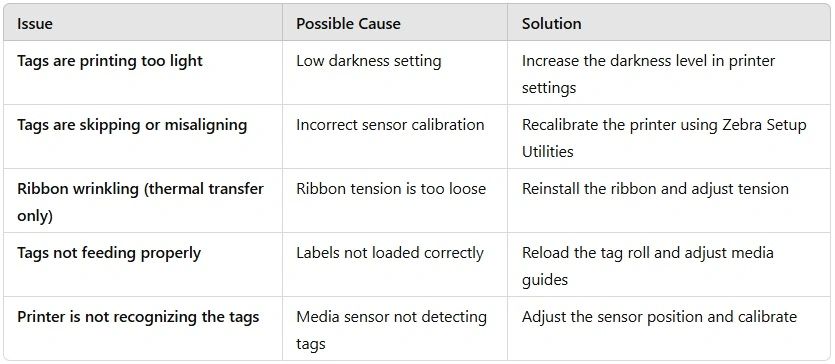
Common Problems When Loading Labels & Ribbons (And How to Fix Them)
Even if you follow the steps correctly, you might encounter some issues. Here’s how to troubleshoot common problems with your Zebra label printer:

If your Zebra label printer continues to have problems, check for firmware updates or consult the Zebra user manual for additional troubleshooting steps.
Best Practices for Maintaining Your Zebra Label Printer
To keep your Zebra label printer running efficiently, follow these maintenance tips:
✔ Use High-Quality Labels & Ribbons – Avoid generic materials that can damage the printhead. ✔ Clean the Printhead Regularly – Use isopropyl alcohol wipes to remove residue and dust buildup. ✔ Store Labels & Ribbons Properly – Keep them in a cool, dry place to prevent curling and adhesive failure. ✔ Calibrate the Printer Periodically – Ensures proper alignment and print quality. ✔ Update Printer Firmware & Drivers – Keeps your printer functioning optimally with the latest improvements.
By maintaining your printer properly, you can extend its lifespan and reduce downtime caused by print quality issues or hardware failures.
Why Choose E.D. Systems Inc. for Your Zebra Label Printer Supplies?
At E.D. Systems Inc., we specialize in providing top-quality Zebra label printers, thermal ribbons, and labels to keep your business running smoothly. Here’s why customers trust us:
✔ Wide Selection of Zebra Printers & Accessories – Find the right printer for your needs. ✔ Competitive Pricing & Bulk Discounts – Save money on large orders. ✔ Expert Technical Support – Get professional guidance for troubleshooting and setup. ✔ Fast & Reliable Shipping – Receive your products quickly to minimize downtime.
If you need labels, ribbons, or maintenance kits for your Zebra label printer, we’ve got you covered!
Conclusion
Properly loading labels and ribbons into your Zebra label printer ensures high-quality printing, fewer errors, and improved efficiency. Whether you’re setting up a new printer or troubleshooting label issues, following the right steps makes all the difference.
If you need Zebra labels, ribbons, or expert support, E.D. Systems Inc. is here to help. Contact E.D. Systems Inc. today for expert advice and the best deals on Zebra label printers and supplies!