
How to Set Up a Zebra Printer for Tags Printing?

Effective labeling and tag printing are essential for asset tracking, retail operations, inventory control, and logistics in today's corporate environment. One of the most reliable options for rapidly and precisely generating premium tags is a zebra printer. However, to get the best performance, you must properly set up your Zebra printer for tag printing to avoid common issues like misalignment, poor print quality, or connectivity problems.
If you're wondering how to configure your Zebra printer for tag printing, this guide from E.D. Systems Inc. will walk you through the entire setup process step by step. By following these instructions, you can ensure flawless tag printing for your business.
Understanding Zebra Tags Printing: Direct Thermal vs. Thermal Transfer
Before setting up your printer, it’s important to understand the two types of printing methods Zebra printers use for tags:
1. Direct Thermal Printing (No Ribbon Required)
✔ Uses heat-sensitive tags that darken when exposed to heat. ✔ Ideal for short-term applications, like price tags, shipping labels, and receipts. ✔ No need for ink or ribbons, making it a cost-effective option.
2. Thermal Transfer Printing (Ribbon Required)
✔ Uses a heat-sensitive ribbon to transfer ink onto tags. ✔ Ideal for long-lasting, durable tags, such as asset tags, inventory labels, and outdoor tags. ✔ Produces smudge-proof, fade-resistant prints that last for years.
Not sure which one you need? If you’re printing temporary tags, direct thermal is best. If you need durable, long-lasting tags, use thermal transfer printing.
Step-by-Step Guide: Setting Up a Zebra Printer for Tags Printing
Step 1: Unbox and Connect Your Zebra Printer
- Unbox your Zebra printer and remove all packaging materials.
- Plug the printer into a power source and connect it to your computer via USB, Ethernet, or Wi-Fi.
- Turn on the printer and wait for it to initialize.
Step 2: Install Zebra Printer Drivers & Software
To ensure smooth operation, install the correct Zebra printer drivers and software on your computer.
✔ Download the latest Zebra printer drivers from the Zebra website. ✔ Install Zebra Setup Utilities – a tool that helps configure and test your printer. ✔ Restart your computer after installation to apply the changes.
Tip: If you’re using a networked printer, ensure it's properly connected to your network before proceeding.
Step 3: Load Zebra Tags Into the Printer
The next step is to properly load the tags into your Zebra printer.
- Open the printer cover and locate the media holder.
- Place the tag roll on the media holder, ensuring it’s positioned correctly.
- Pull the tag roll forward and thread it under the printhead and through the guides.
- Adjust the media guides so the tags remain aligned during printing.
- Close the printer cover securely.
Common Issue: If the tags are not feeding properly, check if the roll is installed correctly and the guides are adjusted tightly to hold the tags in place.
Step 4: Load Ribbon (For Thermal Transfer Printing Only)
If you’re using thermal transfer printing for durable tags, follow these steps to load the ribbon:
- Open the printer cover and locate the ribbon supply spindle.
- Place the new ribbon roll on the spindle and feed it under the printhead.
- Pull the ribbon forward and wrap it around the take-up spindle.
- Secure the ribbon in place and close the printer cover.
Tip: Make sure the ribbon is smooth and free of wrinkles to ensure clean and consistent tag printing.
Step 5: Calibrate the Printer for Tags Printing
To avoid printing misalignment or label skipping, it’s important to calibrate your Zebra printer.
✔ Open Zebra Setup Utilities and select your printer. ✔ Click on “Calibrate Media” to allow the printer to detect tag size and spacing. ✔ Press the FEED button on the printer to advance the tag roll and verify proper alignment.
Troubleshooting: If your tags are not printing correctly, you may need to adjust the media sensor position to match the tag layout.
Step 6: Adjust Print Darkness and Speed Settings
For high-quality prints, adjust the darkness (heat) and speed settings in your printer’s software.
✔ For lighter prints: Increase the darkness setting slightly. ✔ For smudging or too-dark prints: Reduce the darkness level. ✔ For blurry text or images: Decrease the print speed for better precision.
Tip: Always test-print a few sample tags before running full batches to ensure the best quality output.
Step 7: Print a Test Tag
Once the Zebra label printer is fully set up, run a test print to confirm everything is working correctly.
✔ Open your label printing software (e.g., ZebraDesigner, BarTender, or your POS system). ✔ Select your Zebra printer from the available options. ✔ Design a sample tag with barcode, text, or graphics. ✔ Click Print and check the output for clarity and alignment.
Tip: If the tag prints off-center or with missing sections, recalibrate the printer or adjust the label sensor settings.
Common Problems & Fixes for Zebra Tags Printing
Even with the right setup, Zebra label printers may encounter issues. Here’s how to troubleshoot common problems:
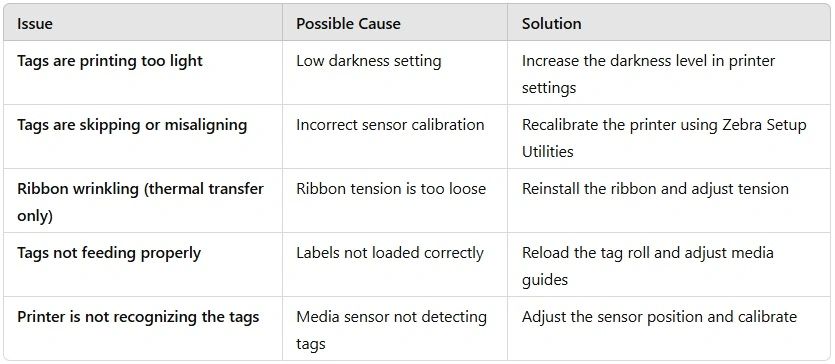
If the problem persists, updating the printer firmware or resetting the printer to default settings can often resolve the issue.
Why Choose E.D. Systems Inc. for Your Zebra Printing Needs?
At E.D. Systems Inc., we specialize in Zebra label printers, thermal ribbons, and tags to help businesses run efficiently. Here’s why customers trust us:
✔ Top-Quality Zebra Printers & Supplies – Get high-performance printing solutions for your needs. ✔ Competitive Pricing & Bulk Discounts – Save money with affordable pricing on all Zebra products. ✔ Expert Technical Support – Our team is here to assist with setup, troubleshooting, and maintenance. ✔ Fast & Reliable Shipping – Get your printer and accessories delivered quickly.
Conclusion
Setting up your Zebra label printer for tag printing doesn’t have to be complicated. By following the right steps, you can ensure perfectly printed tags for inventory tracking, barcode labeling, shipping, and more.
If you need Zebra printers, labels, or expert support, E.D. Systems Inc. has you covered. Contact E.D. Systems Inc. today for expert guidance and the best deals on Zebra tag printing solutions!